Gutenberg: Image

Back to the main page

Hero Image

Click images to enlarge
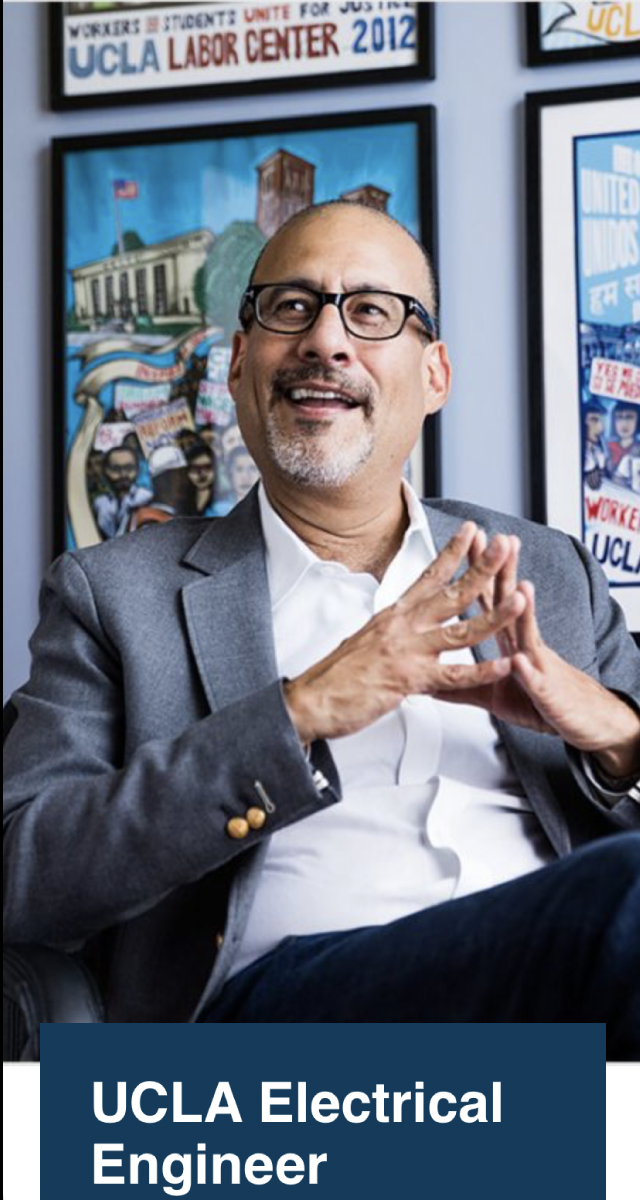
  Hero Image 1 Hero Image 2 Hero Image 3
PC
Mobile
Note
  • The image style is fill. It doesn't take full-width on PC.
  • The text positions on the left side of the image.
  • The text background is white.
  • The image style is fill. It doesn't take full-width on PC.
  • The text positions on the right side of the image.
  • The text background is dark blue.
  • The image style is cover, which means it scales the image as large as possible to fill the container, stretching the image if necessary. If the proportions of the image differ from the element, it is cropped either vertically or horizontally so that no empty space remains. The main object should be in the middle. It takes full-width on PC.
  • The text overlays on the left side of the image.
  • The text background is dark blue.

Insert a Hero Image 1-3 block

  1. Click the plus (Add block) icon
  2. Click a Hero Image block.
    If the block is not showin in the commonly used area, click "Browse all."
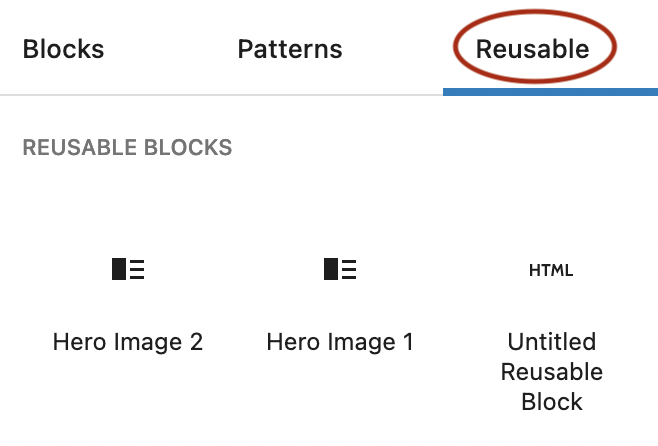
    Select "Reusable" tab, and click one of the Home Hero blocks.
    For Hero Image 3, you need to insert "Home Hero 3 - Text" after "Home Hero 3 - Image."
  3. Click "Convert to regular blocks"
  4. Customize

Insert an image block and customize

  1. Click the plus (Add block) icon
  2. If an image block that you want to use is showin in the commonly used area, click it.
    Otherwise, click "Browse all" and select an image block under MEDIA section.
  3. Toolbar and settings vary depending on the block.

Updated