A Word Of Caution: Switching between Visual and Text view can cause some of your HTML entities to be lost. This is due, in part, to the manner in which TinyMCE handles your HTML. If formatting is very important, do not switch between views. CHOOSE EITHER VISUAL OR TEXT FOR THE PAGE AND STICK WITH IT and DO NOT SWITCH.
Reference: http://www.elegantthemes.com/blog/tips-tricks/getting-the-most-out-of-the-wordpress-post-editor
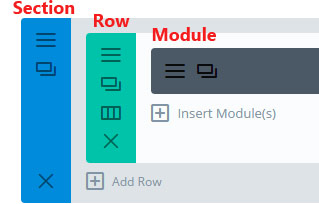
Pages are made up of:
Once you have logged into WordPress and you go back to your site, you should see an "Edit Page" option at the top of the page. Click on this to take you into the page editor.

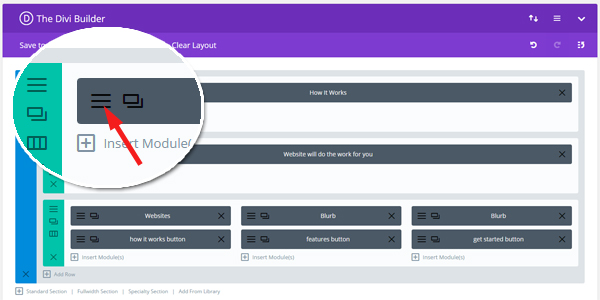
If Divi is enabled on the page, you should now see the Divi Page builder with modules separated into Sections and Row. Click on the 3 horizontal lines at the left of the module you want to edit.
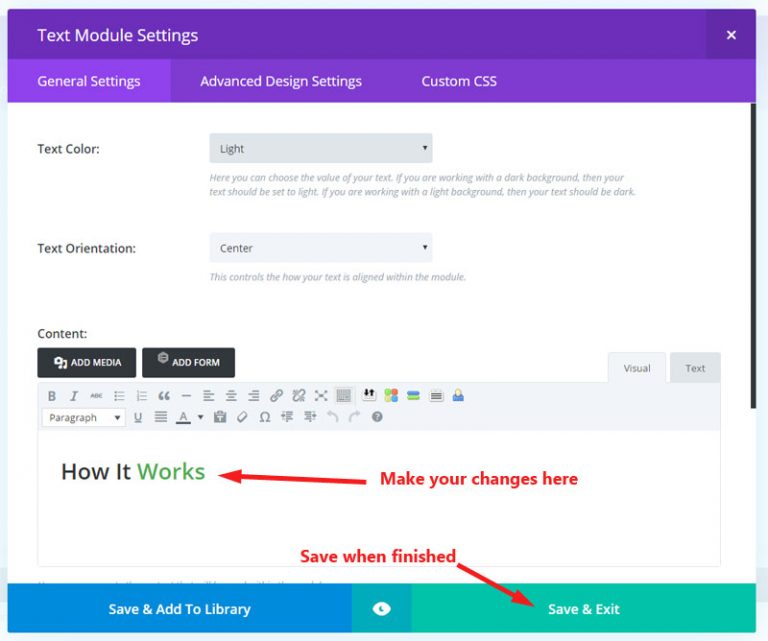
Once you are in the module editor you can make you changes in the content area, it is the same as a normal WordPress content editor at this stage where you can add links, underline, bold, and etc.
Once you have completed editing, click "Save & Exit."
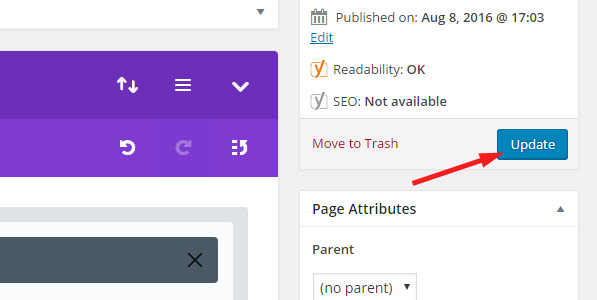
Once you have completed your work in the various modules on a page, remember to update the page to keep your latest changes.
Press the blue "Update" button on the right of the page.
Updated 20190410